Google Flights Explore: find a trip, not just a cheap pin
Interface checked in US-English on 5 September 2026, at desktop and phone widths. Controls can vary by region and account; no booking or price alert was completed.
You know which airport you can leave from, but not where you want to go. That is a good reason to start with Google Flights Explore: compare destination ideas before committing to a route.
The useful result is not simply the cheapest price on the map. It is a shortlist of trips you would actually take, on dates you can use, with an itinerary and total cost you understand.
Here is a practical way to get from an open-ended search to that shortlist—without treating a low displayed fare as a promise.
Start with the limits you cannot move
Before opening the map, decide which departure airports you would genuinely use. An airport across the region can look attractive until you add the cost and time of getting there.
Then write down your non-negotiables: the number of travelers, cabin, acceptable stops, departure window and how long you can be away. If you must be home for work on Monday, a cheap Tuesday return does not solve your problem.
Keep destination choice flexible, but do not quietly make every other part of the trip flexible too. Otherwise, the cheapest result may answer a different question from the one you meant to ask.
Search without choosing a destination
Open Google Flights, check your departure city and leave the destination open, then select Explore. If your version offers an Anywhere choice, you can use that too. Google's own instructions describe this as a way to see destinations on a map and filter results by constraints such as nonstop flights or price.
Use specific dates if your time off is fixed. If it is not, open the calendar and look for Flexible dates, then choose an available time frame or trip length. Exact controls can differ between desktop, mobile and regional versions; do not assume a screenshot from someone else's search will match yours perfectly.
The first pass is for discovering possibilities. Pick a few destinations that fit your interests and travel limits rather than treating the first inexpensive pin as the winner.
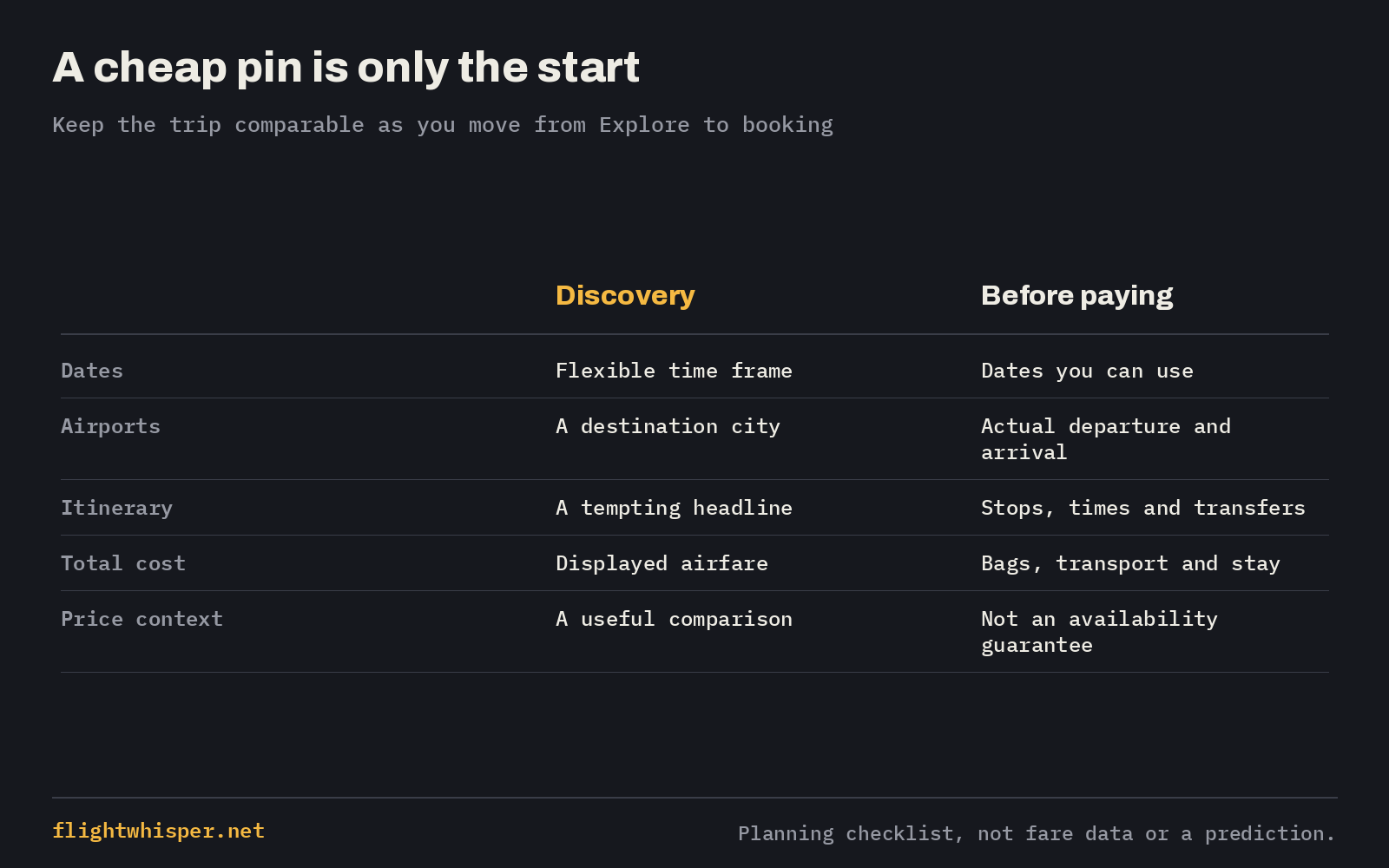
Open the checklist at full size.
Turn a map price into an actual itinerary
Select a destination and inspect the available flights. In our US-English check, the Explore destination panel showed Price insights and a View flights control. Use that control to move into the itinerary results. Check the departure and return dates again: a flexible search can surface a combination you would not have picked yourself.
Next, inspect the airport names, not just the destination city. Check departure and arrival times, connection lengths and whether the itinerary requires a change of airport. If a seller describes separate tickets or a self-transfer, read what that means before booking.
For a return trip, make sure you are comparing return itineraries throughout. Do not compare a one-way headline with another result's round-trip total. Repeat this check if you leave the search tool for an airline or booking site.
This is also where to check baggage and fare conditions. The cheapest fare family may not include the bag or flexibility you need. Compare the trip you plan to buy, not only the amount that first caught your eye.
Compare dates—and use price context where it appears
Once you have a destination, use the Date grid or Price graph to explore nearby travel dates. Google's published product guidance also describes price insights that can indicate whether a fare is lower or higher than usual; historical information is available on some routes.
That context is useful, but it answers a different question from “Can I afford this trip?” A fare can be low relative to its own history and still exceed your budget. An inexpensive flight to a costly destination can also make for a more expensive holiday overall.
Do not read a price comparison as a guarantee that the fare will stay available or that waiting will save money. Before paying, verify the exact itinerary and current total with the seller.
Make a shortlist you can actually compare
Use the same questions for each destination:
- Can I use these dates? Include travel time at both ends, not just nights away.
- Would I take this itinerary? Check stops, airport transfers and inconvenient arrival times.
- What will the trip cost me? Include the flight, required baggage, airport transport and accommodation for those dates.
- What am I giving up? Note restrictive fare conditions or a return schedule that uses extra time off.
For example, one destination might have the lower airfare but require an overnight airport hotel. Another might cost more to fly to but let you arrive in the afternoon and use public transport. Neither automatically wins. The point of the shortlist is to make that trade-off visible.
This example is a planning comparison, not a live fare offer. Search again with your own airports, dates and requirements before deciding.
Not ready to book? Track a chosen route
Once you have a route worth watching, consider price tracking rather than restarting the entire map search every day.
Google's price-tracking help explains tracking for specific dates and, where your plans are flexible, Any dates. Its instructions describe notifications when tracked prices change significantly; this is not a promise of an alert for every small movement.
Tracking a route is different from having the whole Explore map watched for you. Choose the destinations you would actually book, and check the tracking settings for each one. Our Google Flights price-tracking guide covers the setup in more detail.
Explore and Flight Deals are not the same tool
You may also encounter Flight Deals inside Google Flights. In its launch announcement, Google describes a separate AI-powered search experience for flexible travelers: describe when, where and how you want to travel, and it looks for matching destinations and flight options.
Explore is useful when you want to browse a map yourself. Flight Deals offers another starting point if you prefer describing a trip. Availability and presentation can change, so check what is offered in your region rather than relying on the launch announcement's original country list.
Whichever starting point you use, apply the same itinerary, baggage and total-cost checks before booking. A different discovery interface does not remove those decisions.
Add another source of trip ideas, not another guarantee
If you want another starting point, ask FlightWhisper for a trip. Treat a suggested offer as a lead to investigate: check its route, dates, trip type and source details, then confirm the current itinerary and price before paying.
The board is not a promise that every route is covered or that every listed fare remains available. It can sit alongside your map search rather than replace the final booking checks.
The aim is simple: leave the search with a trip you understand—not just a screenshot of a cheap pin.
Prepared with automated analysis and editorial tools. See each article for its sources and limitations.
Ask FlightWhisper for a trip →